Step 1: Navigate to the Client's Service Section
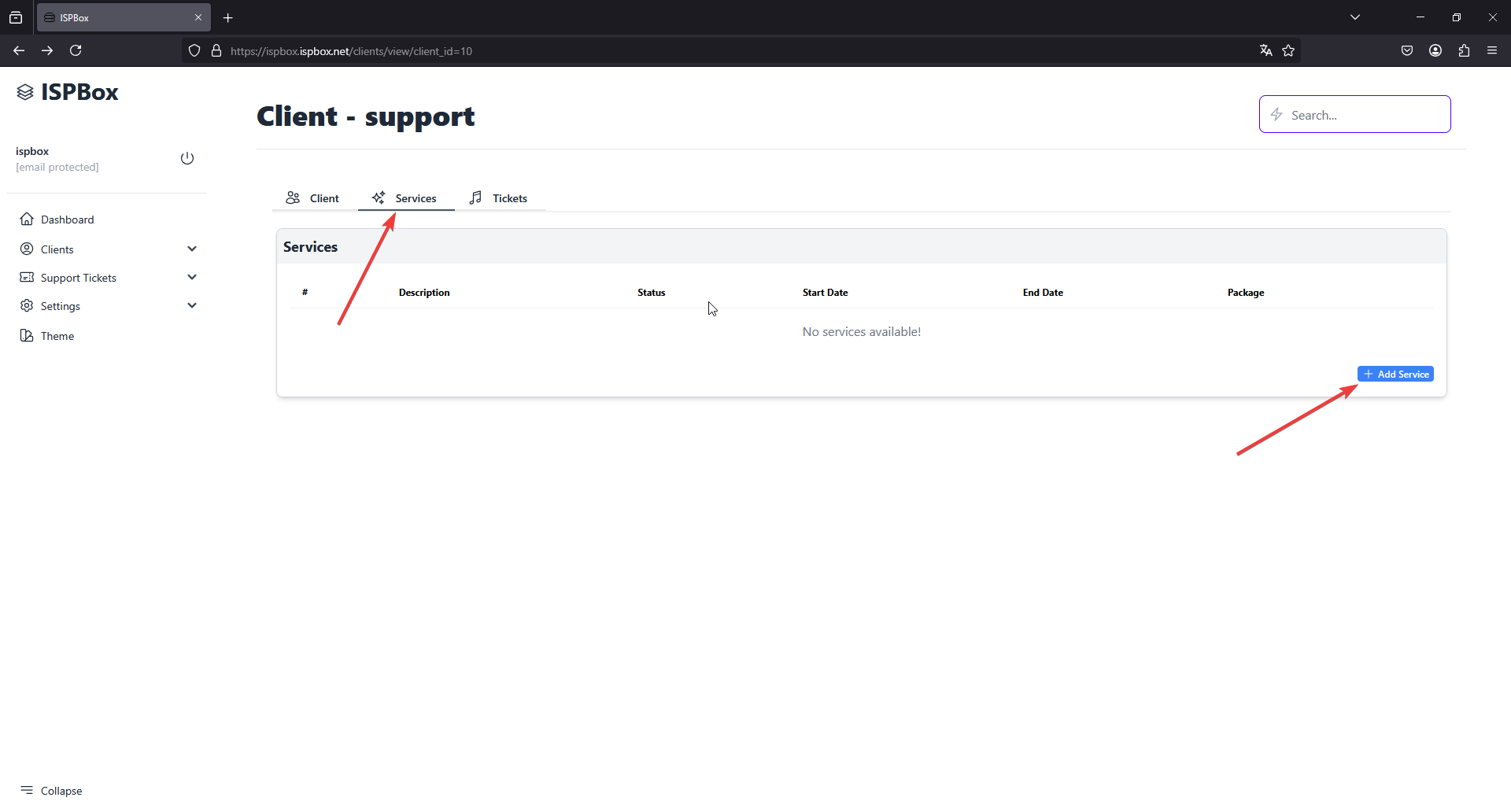
- From the main dashboard of ISPBox, click on "Clients" in the sidebar menu.
- Locate and select the client for whom you want to add a new service.
- Click on the "Services" tab to view existing services or to add a new one.
- Click the "+ Add Service" button to start the process of adding a new service.
Step 2: Fill Out the Service Details
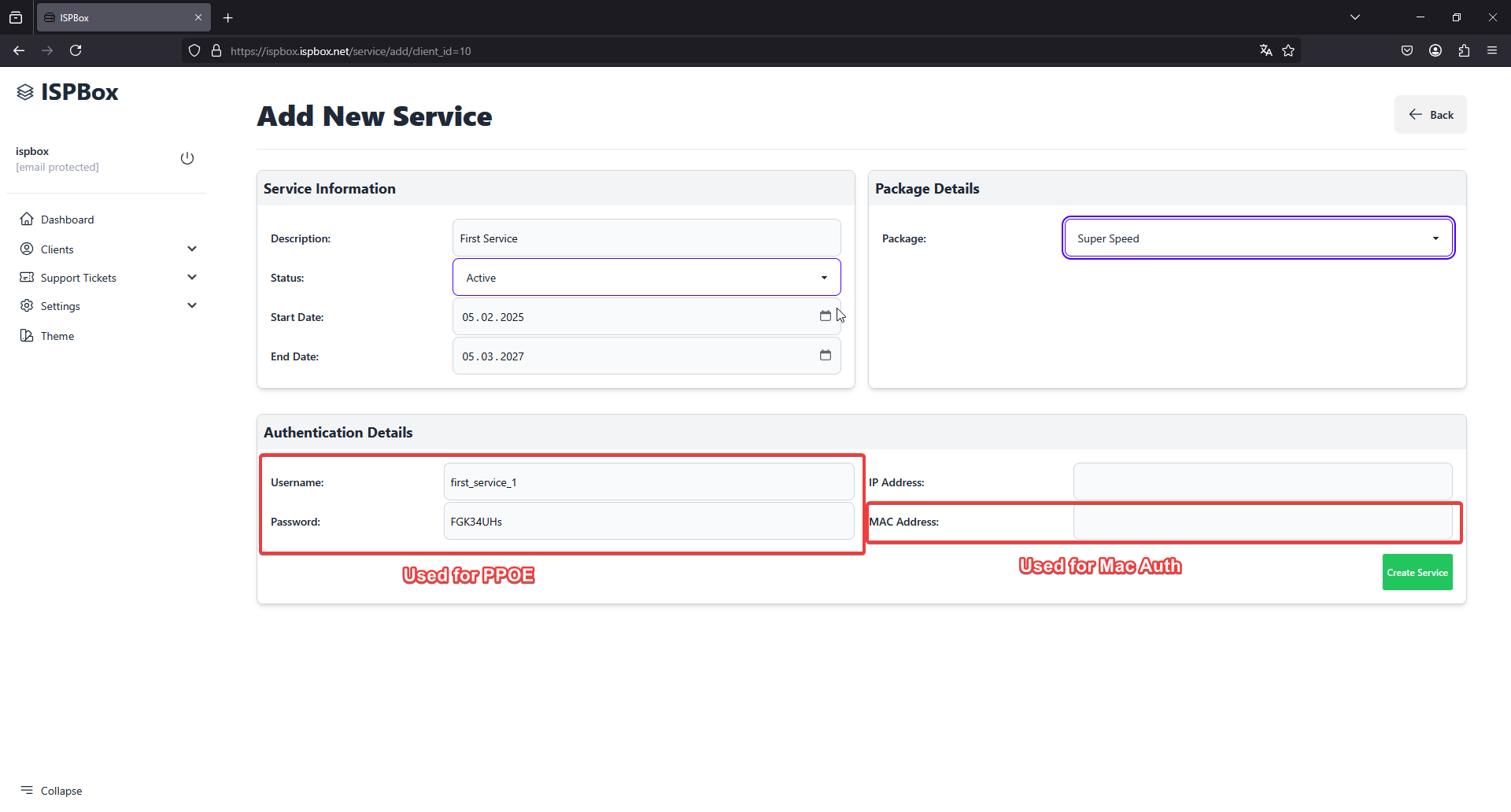
In the "Add New Service" form, enter the details of the service:
- Description: Provide a brief description of the service.
- Status: Select the current status of the service, e.g., Active.
- Start Date: Set the commencement date of the service.
- End Date: Optionally set an end date if the service is time-limited.
- Package: Choose the service package from the dropdown menu that matches the client’s needs.
Step 3: Choose Authentication Method
Decide on the authentication method based on the service type:
- For PPPoE Authentication:
- Username: Enter the username that will be used for PPPoE authentication.
- Password: Input the password that will be used for PPPoE authentication.
- For MAC Authentication:
- MAC Address: Enter the MAC address if the service is to be authenticated by MAC address.
Step 4: Save the Service
- After ensuring all the information is correct and the appropriate authentication method is chosen, click the "Create Service" button to save the new service.
- You will be taken back to the client's service list, where the new service will appear.

Step 5: Verify the Service Addition
- Verify that the new service is listed under the client’s "Services" tab with the correct details, including the chosen authentication method.
- Ensure that the status, start date, and package reflect what was entered in the form.
This updated guide helps ensure that the correct authentication method is selected and applied for the new service, aligning with the client's needs and service requirements in ISPBox.