¶ Connecting Microsoft 365 (Outlook) to ISPBox for Sending Emails
Learn how to connect your Microsoft 365 (Outlook) account with ISPBox to enable sending emails directly from your domain.
This guide explains how to register an app in Microsoft Entra, create client credentials, assign required Graph API permissions, and connect ISPBox securely.
¶ 1️⃣ Create an Application in Microsoft Entra
- Log in to your Microsoft Entra Admin Center.
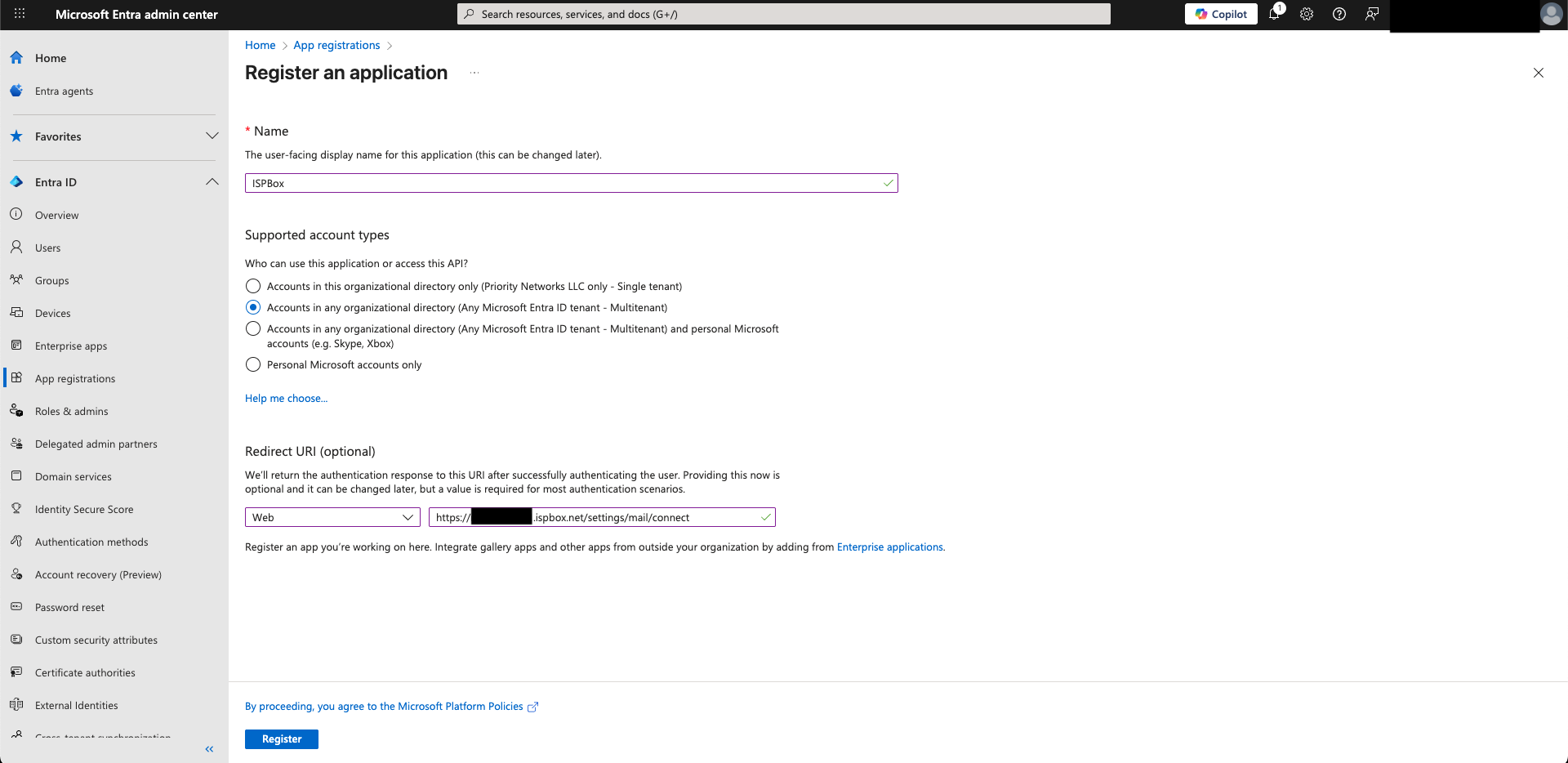
- Navigate to App registrations → click New registration.
- Fill in the details:
- Name:
ISPBox - Supported account types:
Accounts in any organizational directory (Any Azure AD directory - Multitenant) - Redirect URI:
Choose Web, then paste your redirect URL:
https://XXX.ispbox.net/settings/mail/connect
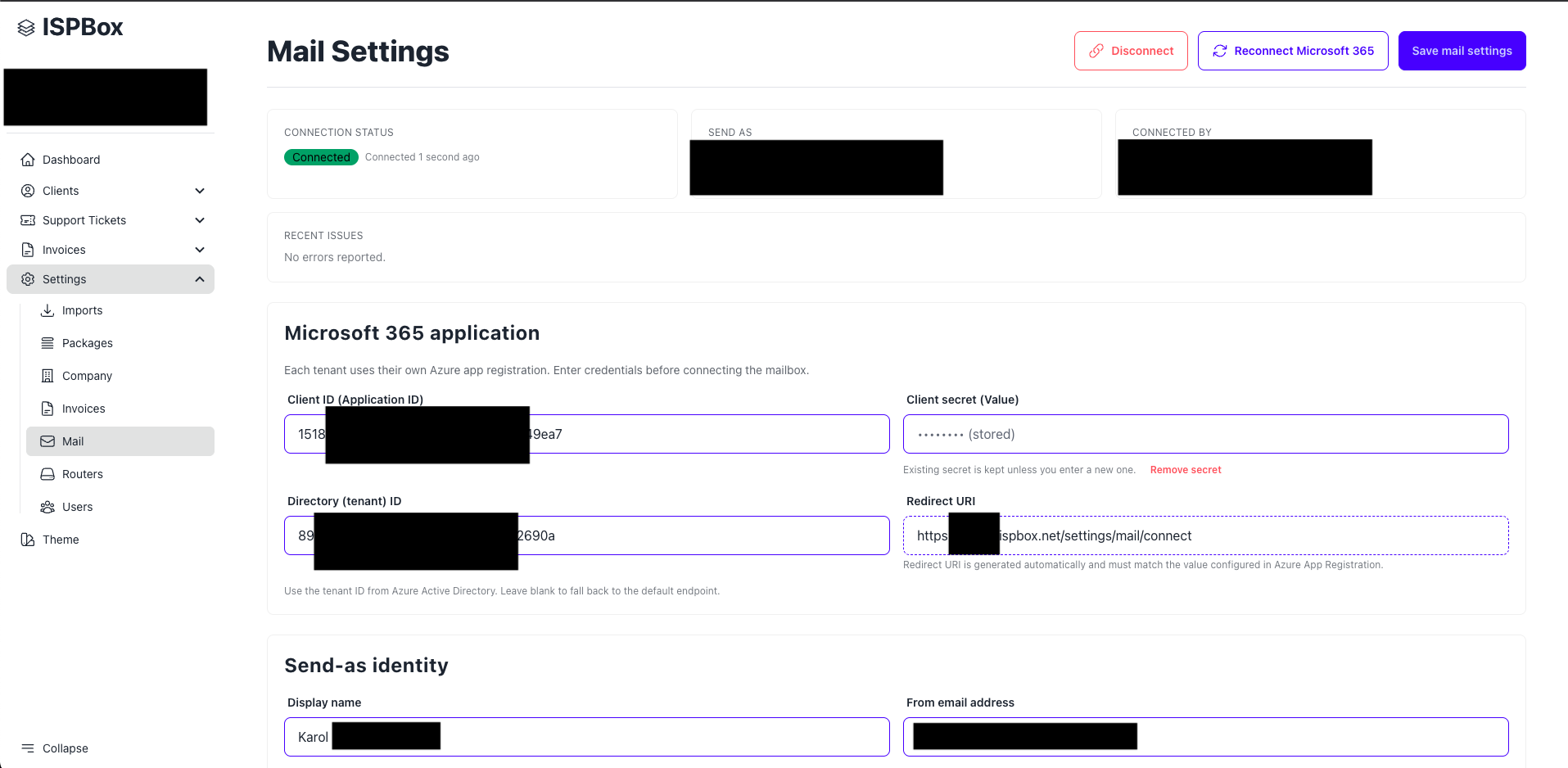
(You can find your redirect URL in ISPBox → Settings → Email.)
- Name:
- Click Register.
¶ 2️⃣ Create a Client Secret
- Go to Certificates & secrets → click New client secret.
- Fill in:
- Description:
ISPBox - Expires:
24 months(recommended)
- Description:
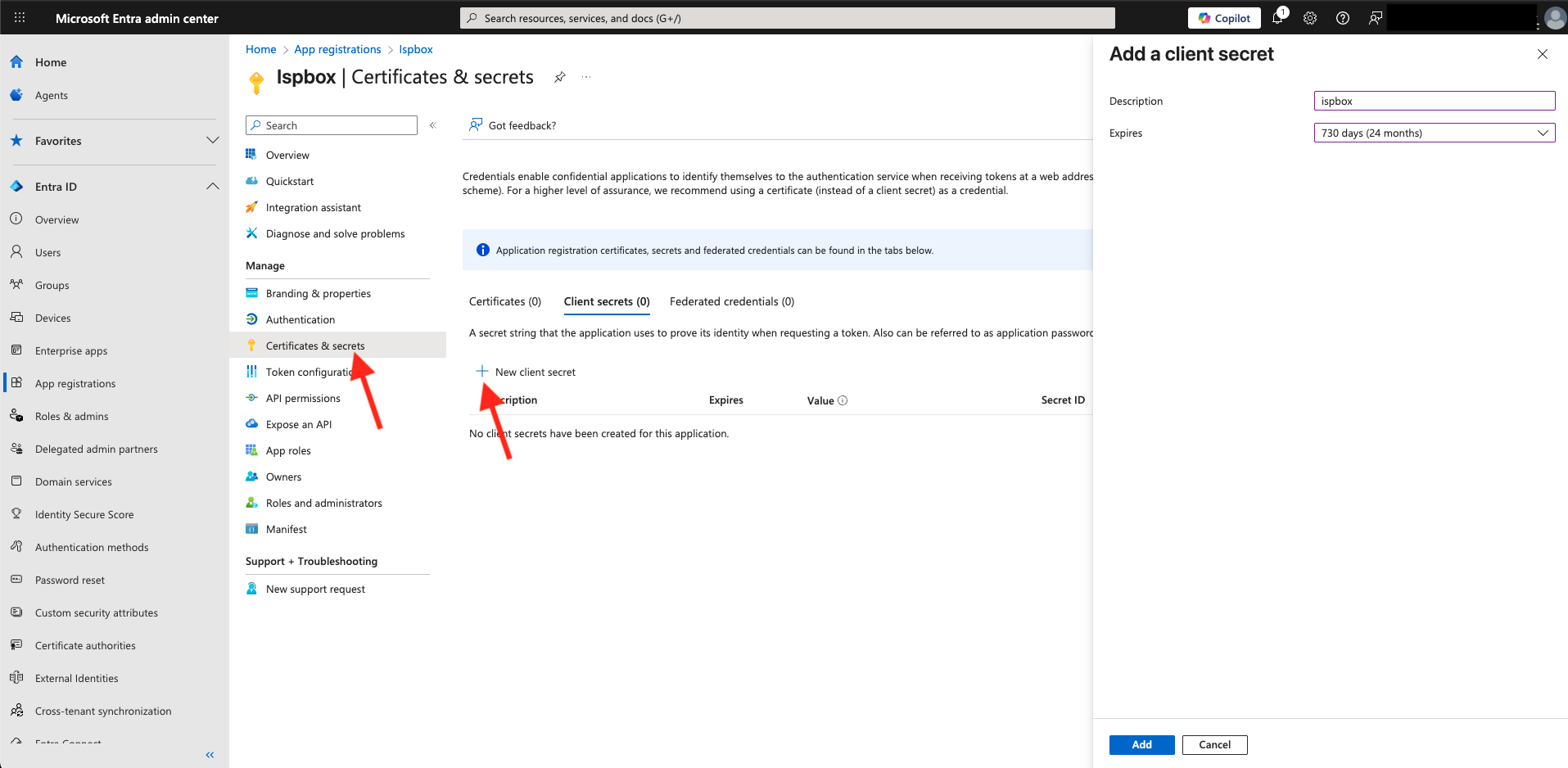
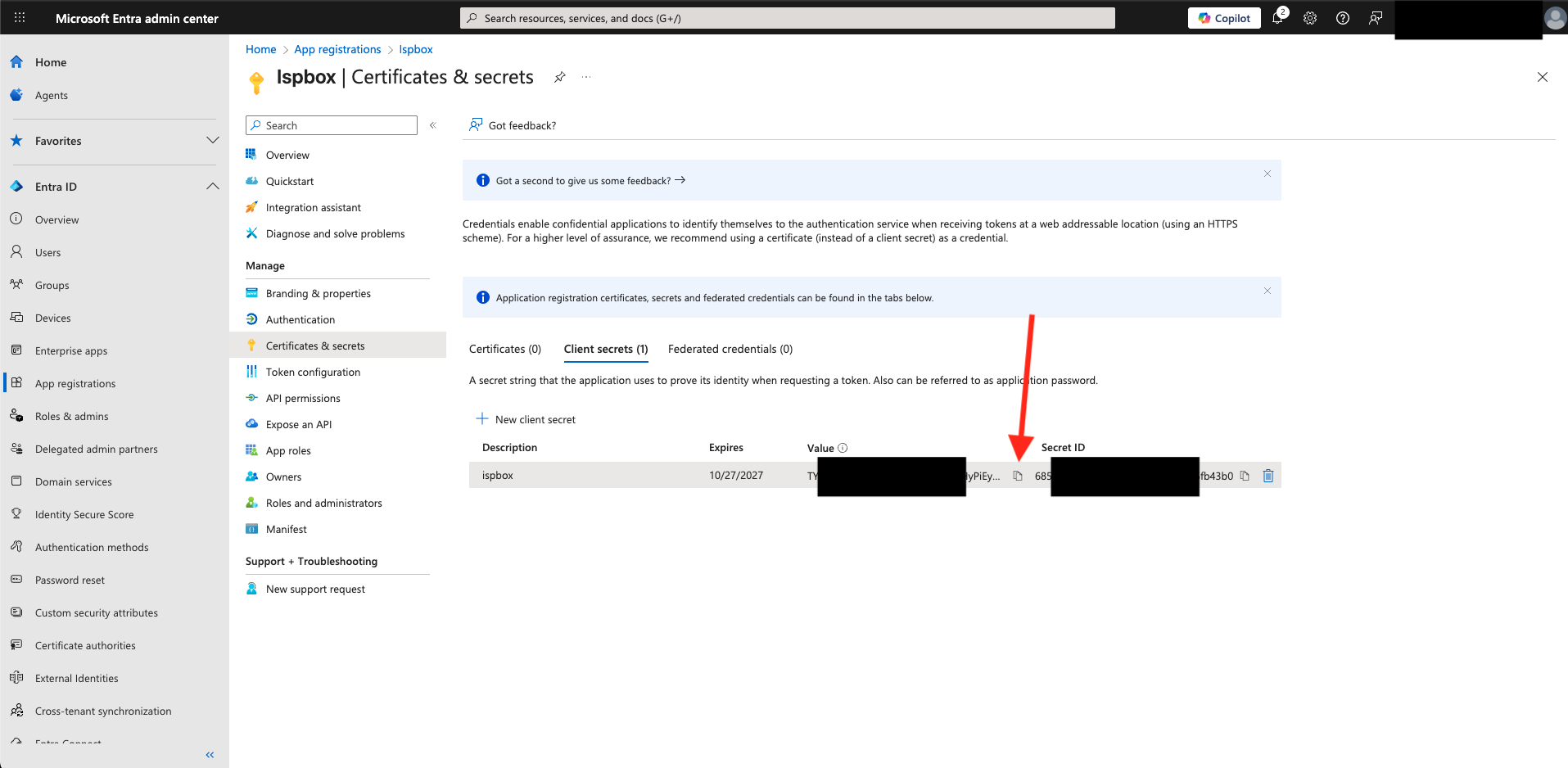
- Click Add, then copy the Secret Value
- Paste the Secret Value into ISPBox → Settings → Mail → “Client secret (Value)”.
¶ 3️⃣ Copy Application and Tenant IDs
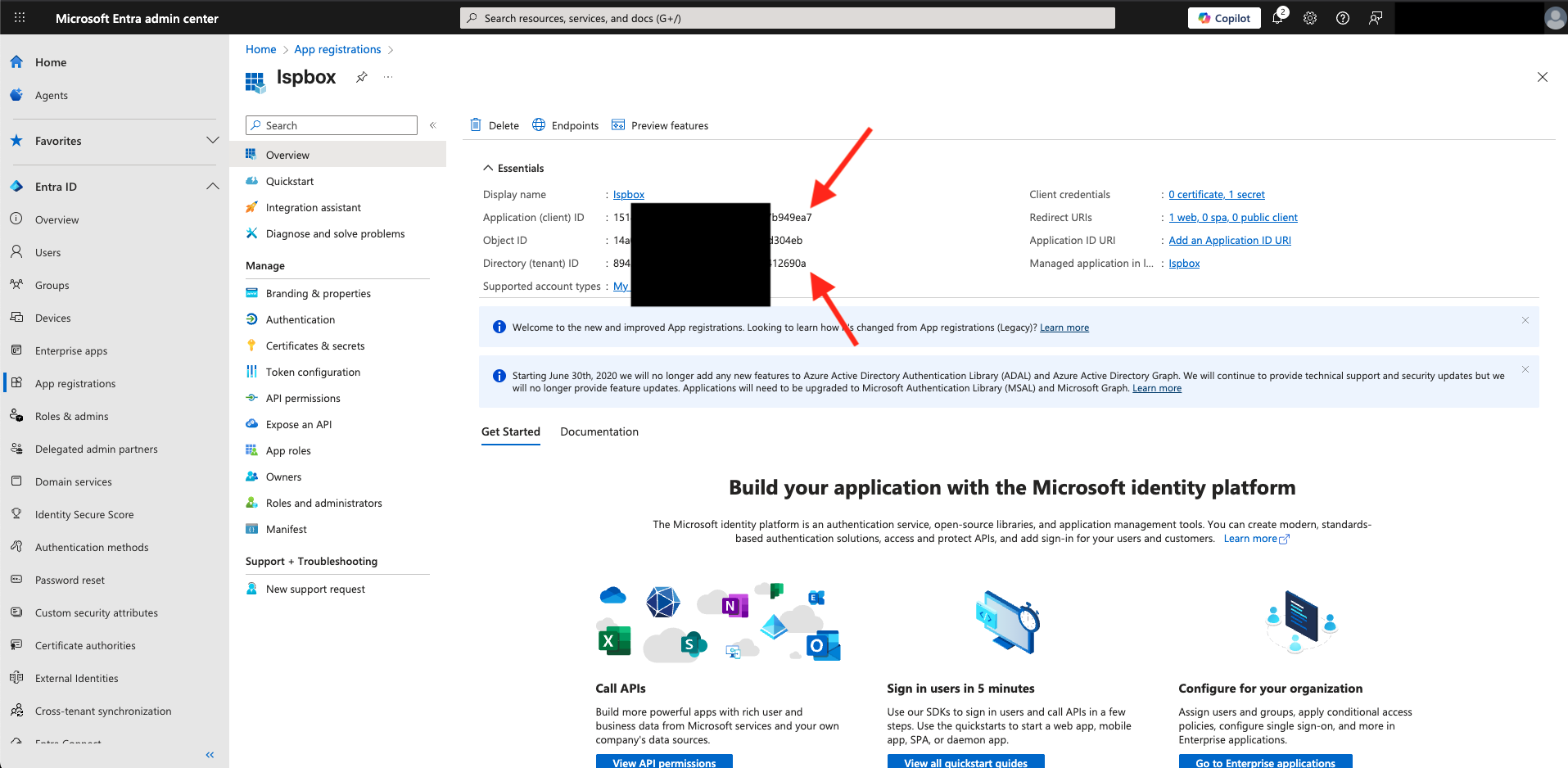
- Go to the Overview tab.
- Copy the following values:
- Application (client) ID → paste into ISPBox “Client ID (Application ID)”.
- Directory (tenant) ID → paste into ISPBox “Directory (tenant) ID”.
¶ 4️⃣ Configure API Permissions
-
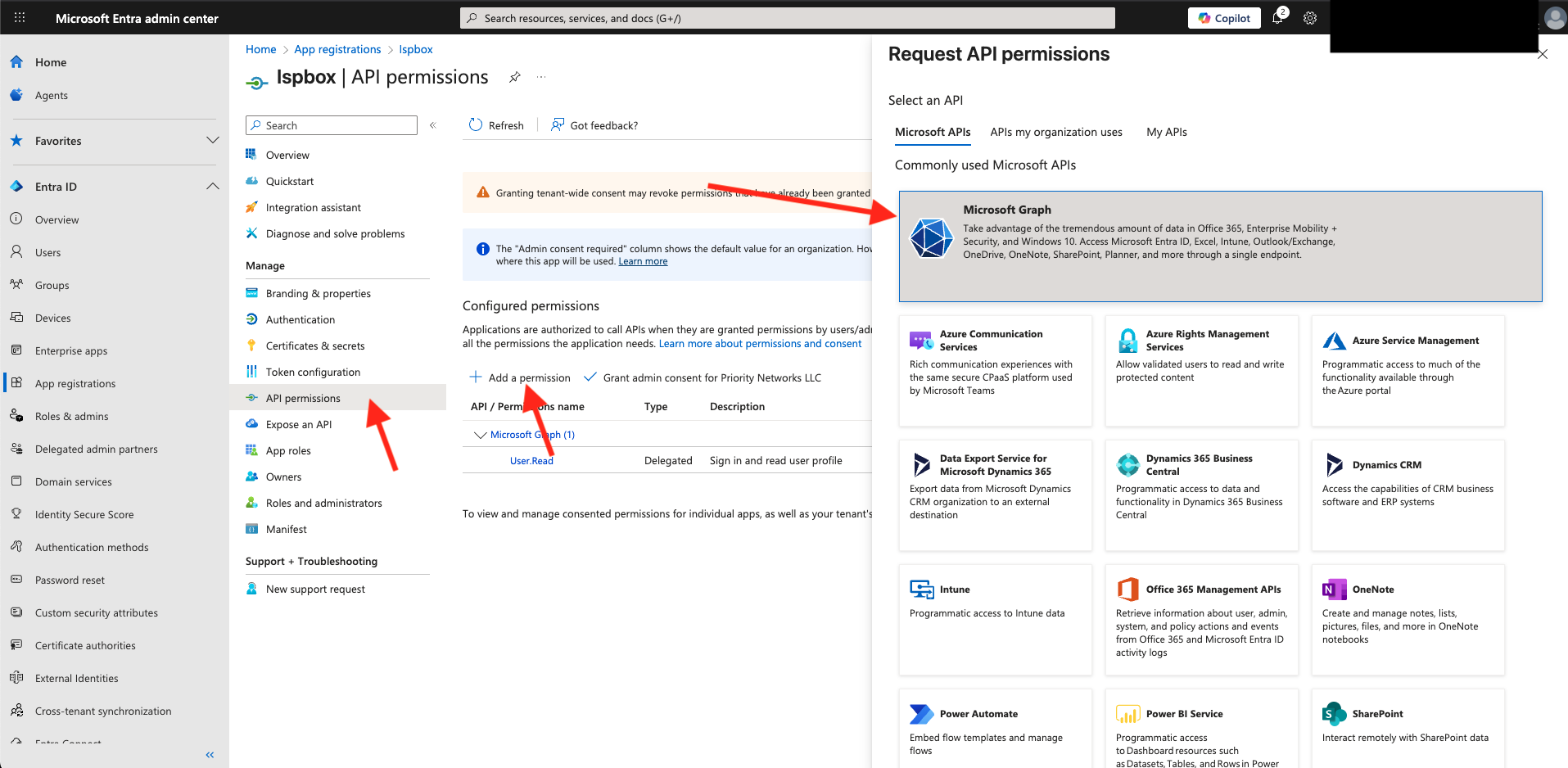
Go to API permissions → click Add a permission.
-
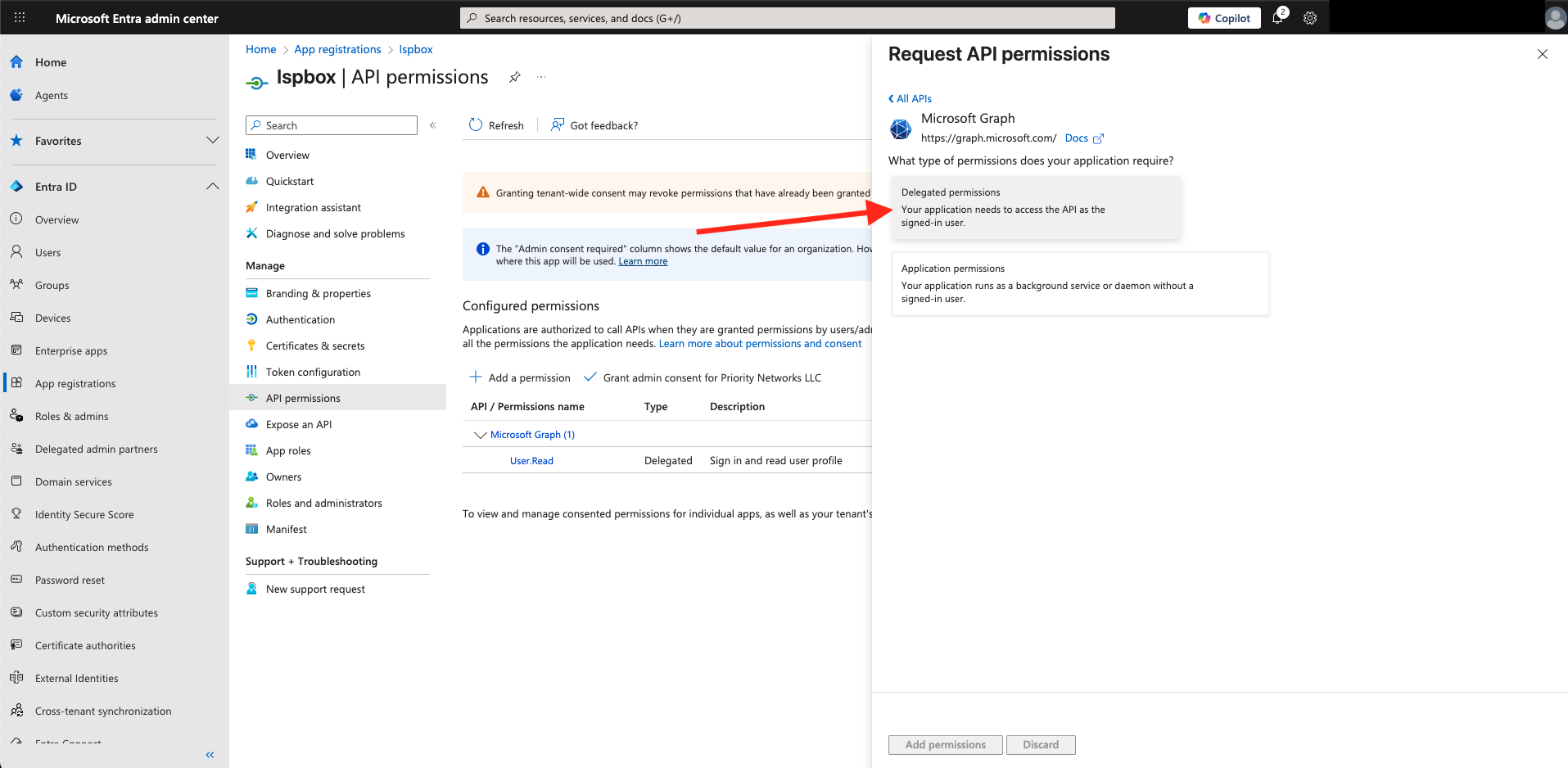
Choose Microsoft Graph → Delegated permissions.
-
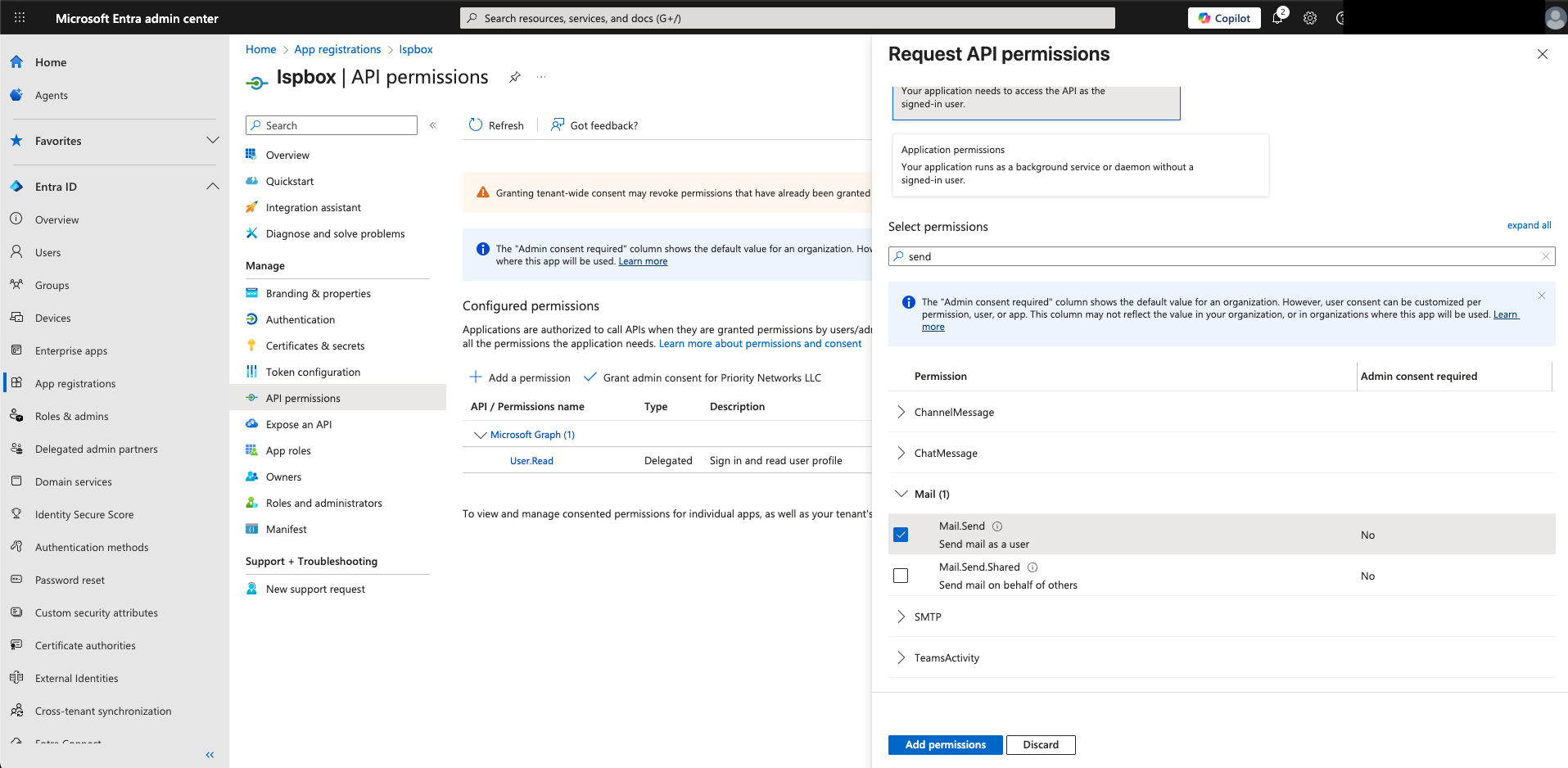
Add the following permissions:
| Permission | Description |
|---|---|
| Mail.Send | Allows ISPBox to send emails on behalf of the signed-in user or shared mailbox. |
| offline_access | Grants ISPBox permission to refresh tokens automatically — ensures the connection stays active without re-authentication. |
| openid | Required for user authentication through Microsoft’s identity platform (OpenID Connect). |
| profile | Allows access to basic profile information of the authenticated Microsoft 365 user. |
| Grants access to the user’s primary email address for identity verification. | |
| Mail.Send.Shared | Allows sending from any mailbox the user has access to, e.g., shared mailboxes. Add this to support Send As / Send on Behalf via Graph using delegated auth. |
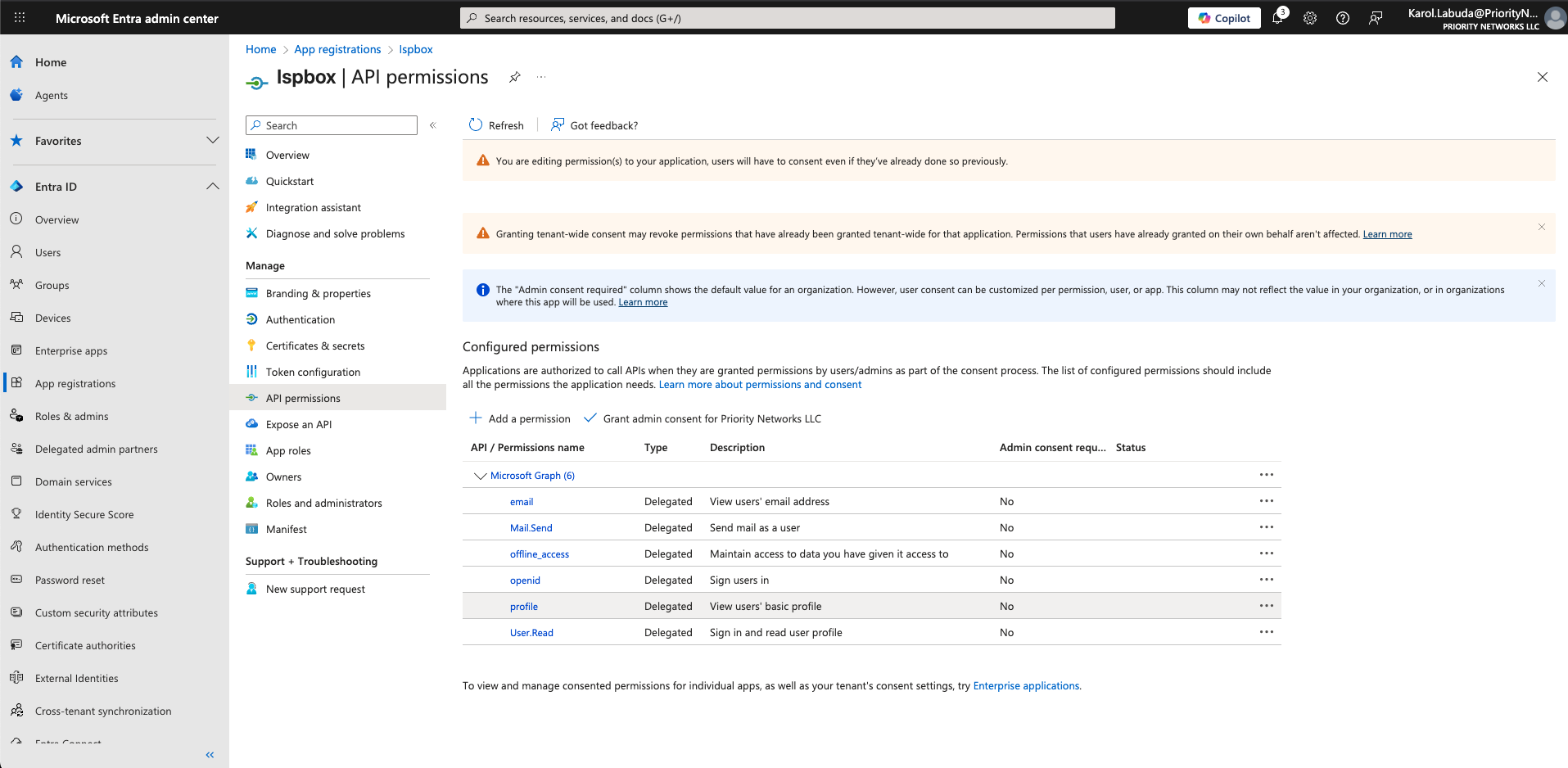
- Click Add permissions, then click Grant admin consent to apply them.
¶ 5️⃣ Final Step – Connect ISPBox
Go back to ISPBox → Settings → Mail and click Connect Microsoft 365.
If everything is configured correctly, you will be redirected to Microsoft to authorize the connection.
After authorization, you’ll be able to send emails via Outlook / Microsoft 365 directly from ISPBox, including from shared mailboxes (if your user has “Send As” permissions in Microsoft 365).
¶ 
¶ 💡 Sending from a Shared Mailbox
If you want ISPBox to send emails from a shared mailbox (for example: [email protected]), you must grant your Microsoft 365 user the Send As permission on that mailbox.
Without this permission, emails will be sent like:
[email protected] on behalf of [email protected]
With Send As, they will be sent directly as:
¶ ✅ Steps: How to grant "Send As" access
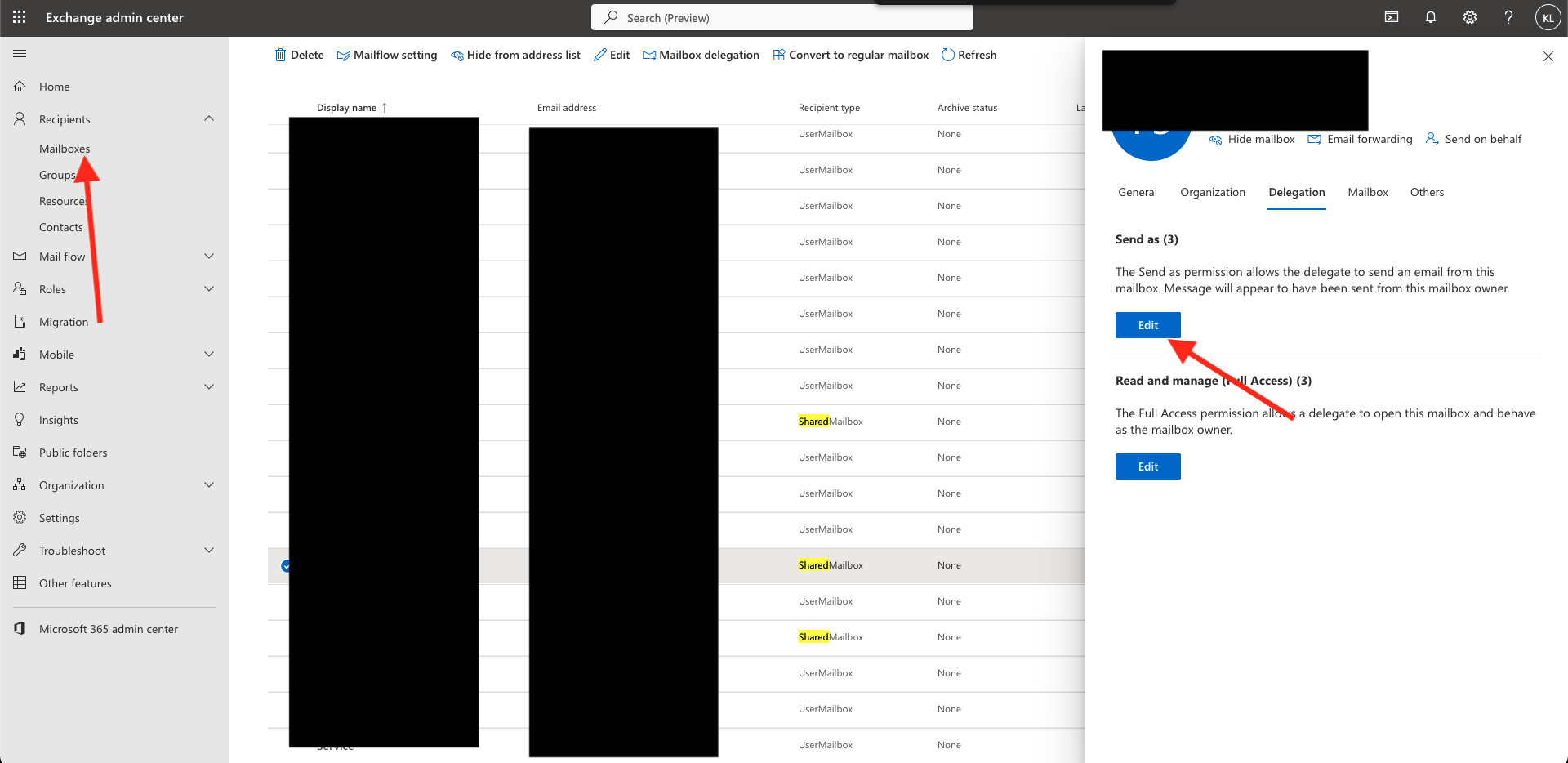
- Log in to https://admin.exchange.microsoft.com
- Go to Recipients → Mailboxes
- Find and select your shared mailbox (e.g.
[email protected]) - Open the Delegation tab
- Under Send as, click Edit
- Click Add, select your user (e.g.
[email protected]) - Click Save
¶ 🧠 Important Notes
- You must have both Mail.Send and Mail.Send.Shared permissions in the Entra app (configured earlier).
- After assigning "Send As", changes can take up to 60 minutes to apply.
- Once ready, ISPBox can send emails directly as the shared mailbox address.